Windows Power User Tweaks: WinUtil - Chris Titus Application for Maximum Productivity
12/03/2026
Discover powerful Windows tweaks, useful programs and hidden features to boost your productivity and streamline your workflow.
What is Winutil? Winutil (Chris Titus Tech’s Windows Utility) is a comprehensive PowerShell-based tool that helps you:
- Install Applications: Quickly install popular software without manual downloads
- Apply Tweaks: Optimize Windows for performance, privacy, and usability
- Fix Issues: Troubleshoot common Windows problems with one-click fixes
- Manage Updates: Control how and when Windows updates install
- Access Tools: Quick access to Windows panels and utilities
Source: Chris Titus Tech - WinUtil
Just run the following command in PowerShell:
irm "https://christitus.com/win" | iex
--UPDATE--* MY CODE BRANCH WAS APPROVED!--*
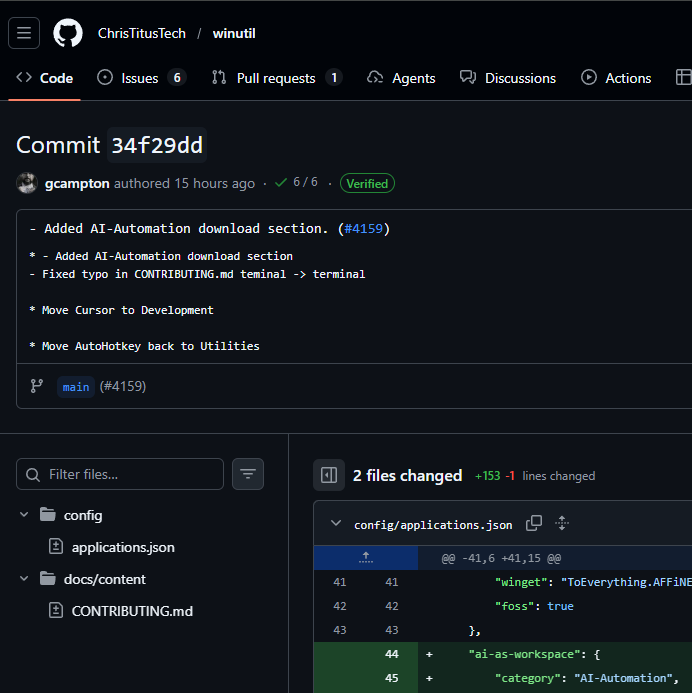
This is my first contribution to other public codebases, albiet it being rather simple fixes I'm proud of myself for helping the community and making a meaningful contribution. Anyway... back to the post. - You will notice the below image looks a little different to what you see now when you run the program thanks to my update.
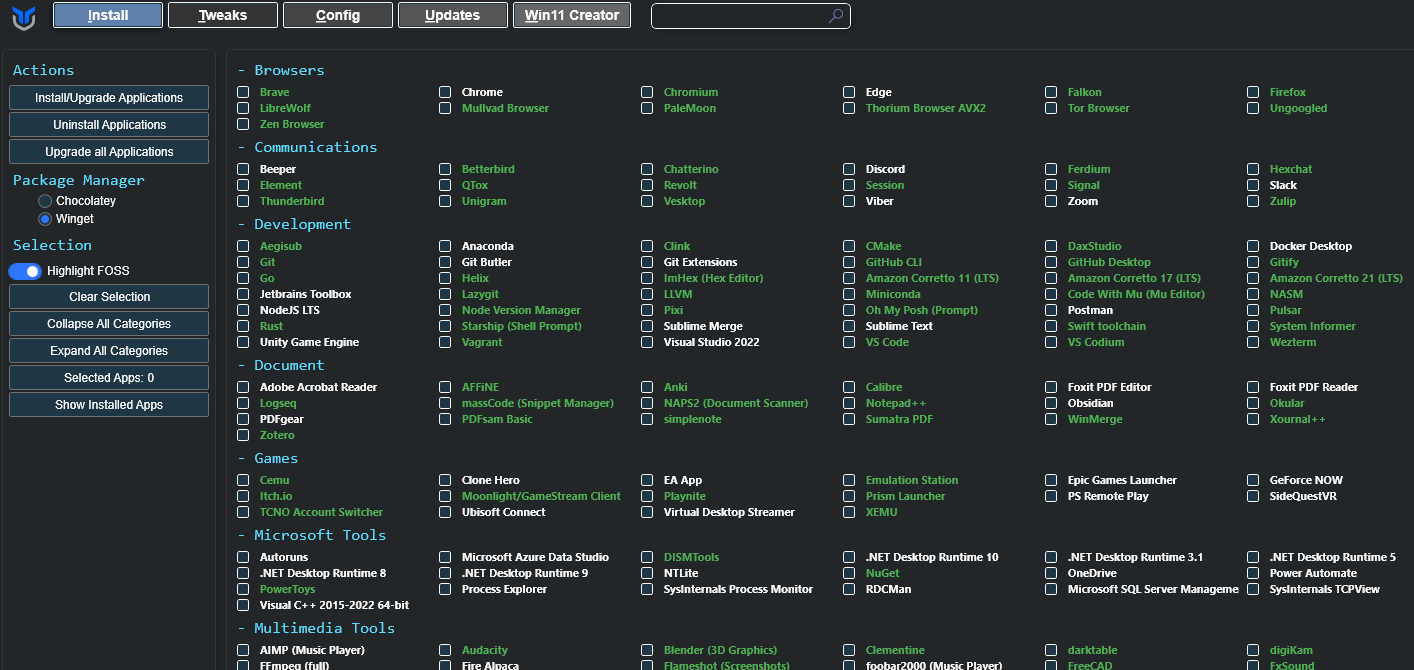
MS Windows has a reputation, at least since we left XP… and a messy desk reputation. You install a fresh copy, everything feels clean for about ten minutes, and then suddenly there are pop-ups, telemetry settings, startup junk, and fifteen apps you never asked for. Somewhere in the chaos you start wondering if your PC is secretly working a second job mining data.
That’s where WinUtil comes in.
WinUtil is a tool created by Chris Titus, a tech YouTuber known for squeezing every ounce of performance out of Windows machines. The idea behind the tool is pretty simple: give people a single script that fixes the annoying parts of Windows without spending hours digging through settings panels.
And the best part? It’s basically a PowerShell super-tool you launch once and suddenly Windows feels like it’s under your control again.
What WinUtil Actually Is
At its core, WinUtil is a PowerShell-based Windows utility script that opens a graphical control panel full of useful tweaks.
Instead of downloading ten different programs, registry edits, and optimization tools, you run one command and get a clean interface with everything in one place.
Think of it like a control hub for Windows power users, but without needing to be some hardcore sysadmin.
The tool lets you:
- Install common applications quickly
- Apply performance and privacy tweaks
- Fix common Windows issues
- Manage updates
- Open hidden Windows tools instantly
It’s basically the “make Windows less annoying” button.
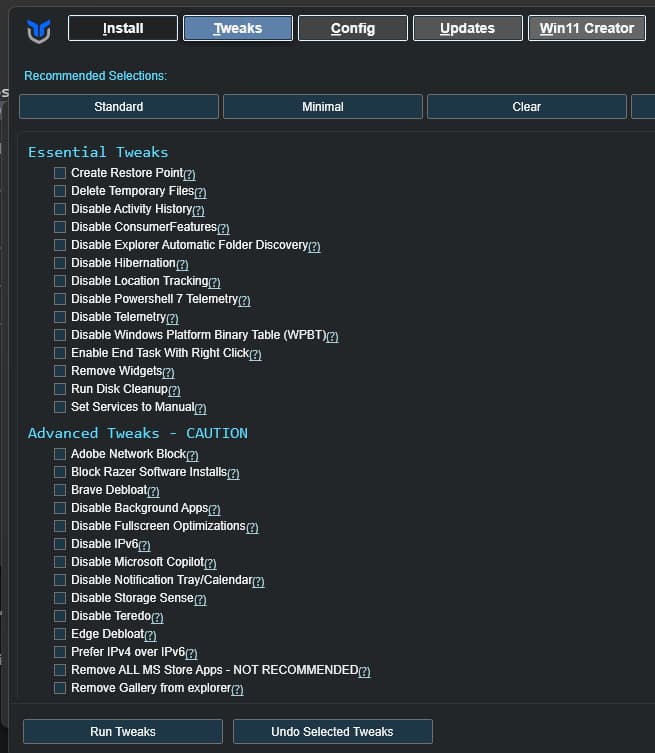
Installing Apps Without the Pain
One of the best parts of WinUtil is its application installer.
Normally installing apps goes something like this:
- Google the software
- Click through three sketchy download sites
- Accidentally install a browser extension from 2009
- Question your life choices
WinUtil skips all that.
Inside the installer tab you can just tick the apps you want and it installs them automatically.
Popular stuff like:
- Chrome
- Firefox
- Discord
- Steam
- VLC
- OBS
- Git
- VS Code
And the infamous “Windows Power Toys” - Learn more about Windows Power Toys
It pulls them from trusted sources and installs them silently. No download hunts. No popup spam.
If you’re setting up a fresh Windows install, this alone saves a ridiculous amount of time.
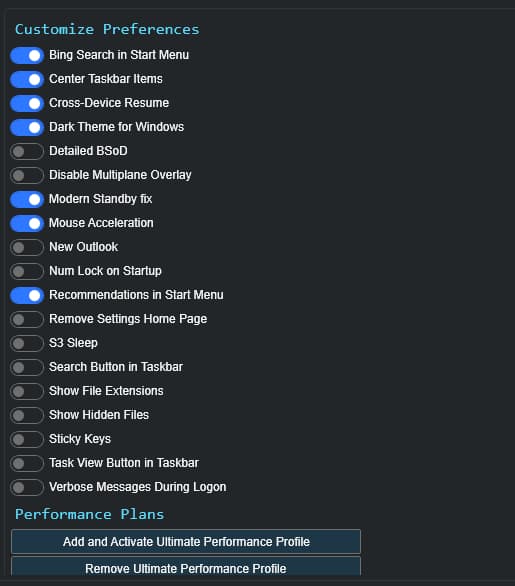
The Performance & Privacy Tweaks
This is where things get spicy.
Windows ships with a lot of background services, telemetry settings, and startup junk that most people never touch. Some of it is harmless. Some of it just wastes resources.
WinUtil gives you one-click tweaks to adjust things like:
- Disabling unnecessary background services
- Reducing Windows telemetry
- Removing bloatware apps
- Improving system responsiveness
- Adjusting power settings
None of this is magic. It’s mostly registry tweaks and system settings that power users have been doing manually for years.
WinUtil just packages them into a clean interface so you don’t need to hunt through forums.
Fixing Windows Problems
Every Windows user eventually hits the classic moment:
“Why is my PC doing that?”
WinUtil includes a repair section that can run common fixes like:
- Resetting Windows networking
- Repairing Windows updates
- Clearing broken system states
- Running built-in troubleshooting tools
Instead of opening five different admin panels, you can trigger the fix from one place.
It’s basically a Swiss Army knife for annoying Windows problems.
Taking Control of Windows Updates
Windows updates are important… but they can also be incredibly inconvenient.
There’s nothing quite like booting up your PC to play a game and getting hit with:
“Working on updates. 17% complete.”
WinUtil gives you options to manage how updates behave.
You can configure things like:
- Update deferrals
- Automatic installs
- Security updates only
- Manual update control
For people who want more control over their system, this is a huge quality-of-life improvement.
Quick Access to Hidden Windows Tools
Windows actually has a ton of useful built-in utilities. The problem is most of them are buried under three layers of menus.
WinUtil adds shortcuts to tools like:
- Device Manager
- Services Manager
- Network settings
- Task scheduler
- Disk management
- Windows features panel
Instead of hunting through the control panel maze, you can open them instantly.
It feels like Windows suddenly got a developer-mode dashboard.
Why People Like It
The reason WinUtil has become popular is simple.
It respects your time.
Instead of spending hours researching registry tweaks, uninstall scripts, and setup guides, you get a single place to manage your system.
For gamers, developers, and anyone who builds PCs regularly, it’s incredibly useful.
It also helps turn Windows from a “default settings” machine into something tuned for how you actually use your computer.
The Nerdy Truth
Tools like WinUtil are basically automation scripts.
They don’t contain secret optimizations or hidden Windows hacks. What they do is collect dozens of known tweaks and put them behind a friendly interface.
That’s the real magic: reducing friction.
Computers are complicated machines pretending to be simple appliances. Utilities like this give users just enough control to steer the ship without needing a PhD in Windows internals.
And honestly… once you’ve used it on a fresh Windows install, it’s hard to go back.
Final Thoughts
WinUtil is one of those tools that feels like it should have existed years ago.
It installs apps faster, cleans up Windows annoyances, gives you control over updates, and exposes useful system tools without making you dig through menus.
If you’ve ever reinstalled Windows and thought:
“Why do I have to do the same setup every single time?”
WinUtil basically answers that question.
Run one script, click a few boxes, and your machine suddenly feels like your computer again instead of Microsoft’s default template.
The strange part about software ecosystems is that the most useful tools often come from one person solving their own problem. A YouTuber wanted an easier way to configure Windows, so he built a script. That script became a utility. Then thousands of people started using it.
Technology evolves like that—less like a corporate master plan, and more like a bunch of clever humans duct-taping better tools together until something surprisingly elegant emerges.